

If you use forScore on an iPad or other Apple device for sheet music that you have background tracks for, you may be looking for the easiest way to use a track with your sheet music. forScore offers a very helpful way to link background tracks to your sheet music, which can make a performance much simpler and easier. You can even program the sheet music to turn its own pages while the track plays! I will show you how to do all of that in this article.
This process is easiest if you download the track on your iPad rather than a computer. If you are using one of my background tracks, I'm going to assume in this article that you have already found the downloads page for the track you purchased on the website. If you are not sure how to get to that point, you can follow the same steps we share for downloading sheet music here: How Do I Download Sheet Music?
Before we start... the links in this article are not affiliate links. I do not make anything off of sharing the products that I use or suggest. I just want to share these things with you in order to help you in your playing! Let's jump in!
Step 1: Download the Track
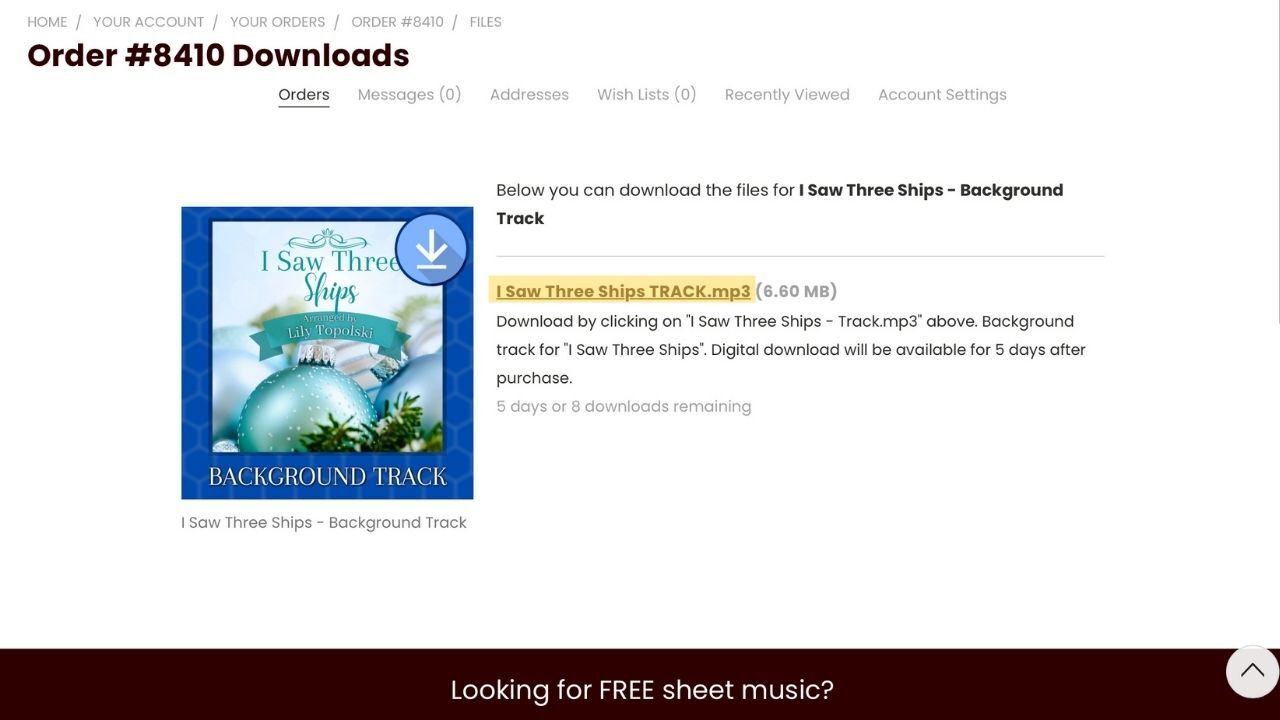
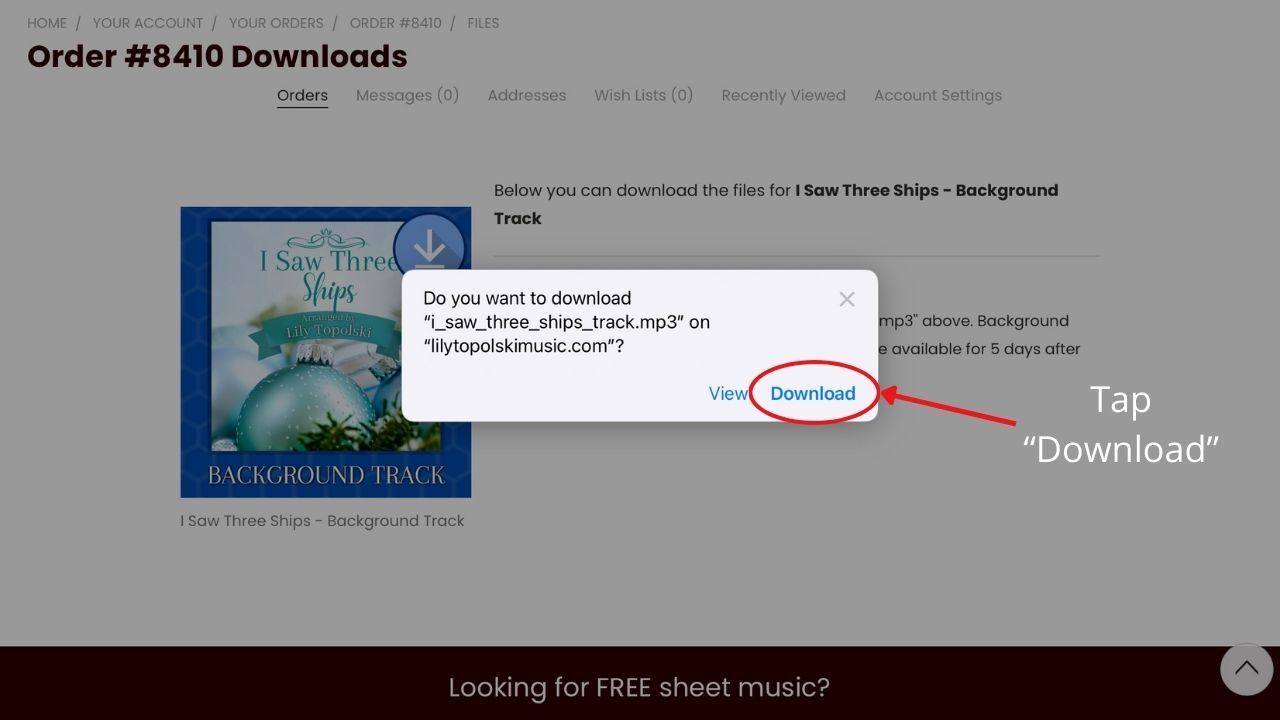
First, find the downloads page for your order. If you are unsure of how to find this page, you can see detailed instructions on how to get there here: How Do I Download Sheet Music?. Once you are there, you will click on the name of the track (as shown below). A pop up will appear asking if you would like to download the file. Click "Download".
Step 2: Import Track to forScore
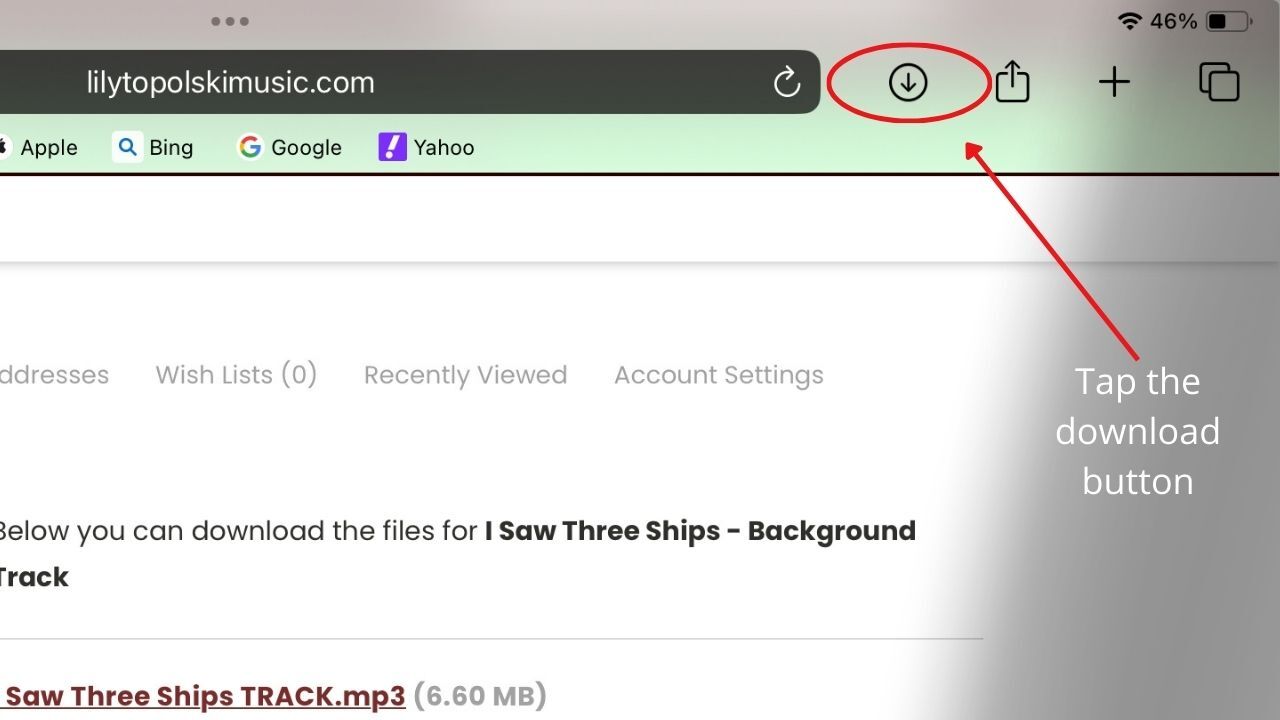
Once the file has downloaded, you will have to open the file. To do that, click on the download button in the upper right hand corner of the page and then click on the name of the track you just downloaded to open it.
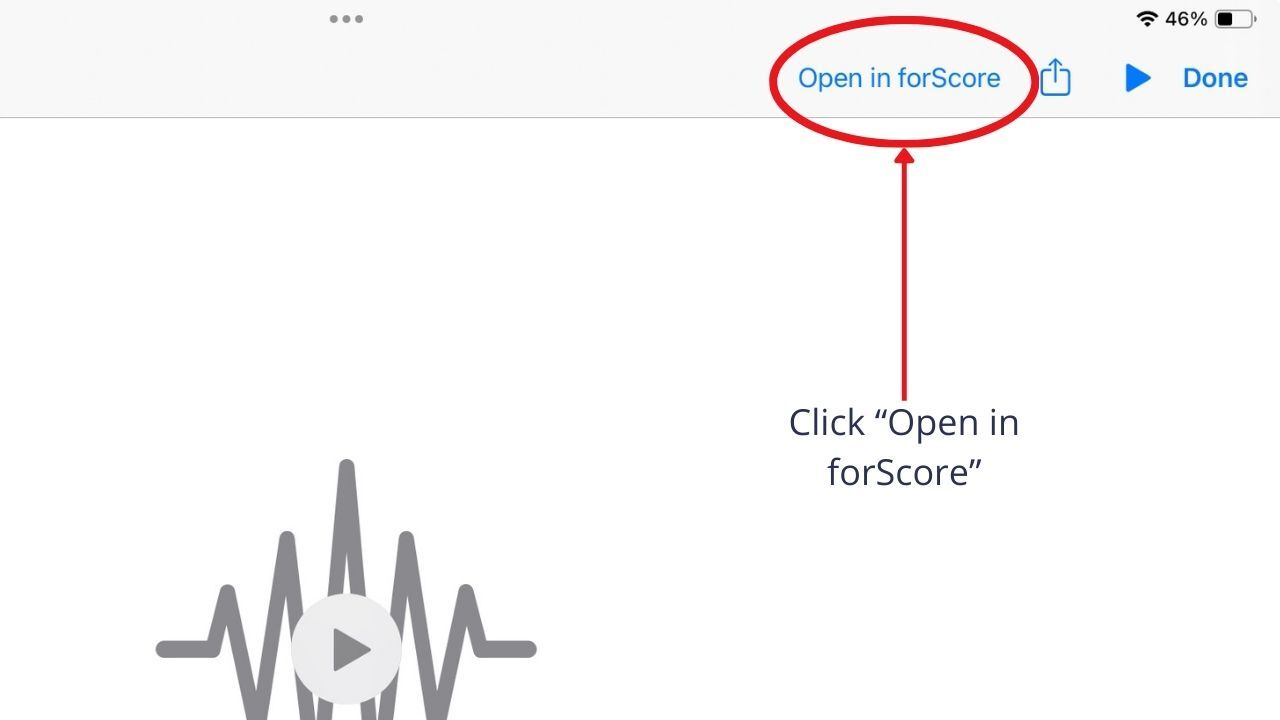
From here, the file will open and there will be a message in the upper right-hand corner of the screen that says "Open in forScore". Click on that link. From here, forScore will open and it will appear that nothing has happened, but the track has been added to a list of audio files within the app.
Step 3: Link Track to Sheet Music
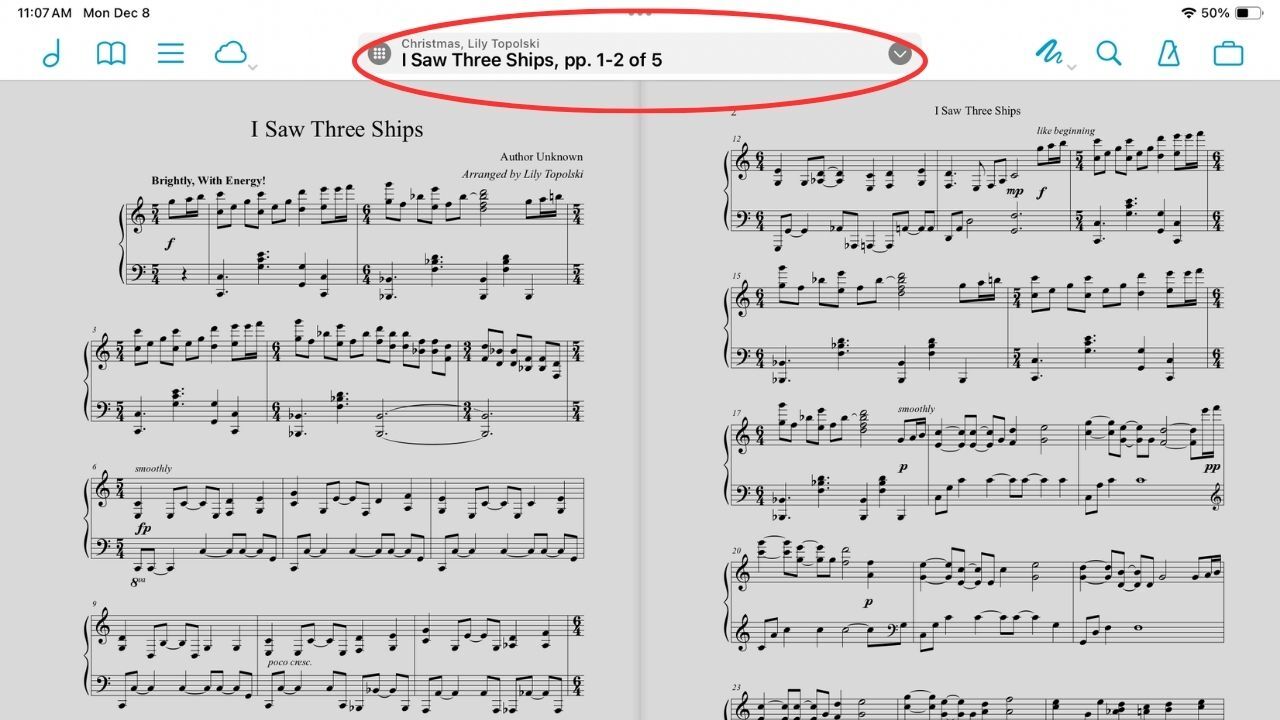
Now that you are in forScore, open the sheet music you would like to link the background track to. From here, you will click on the gray bar in the top center of the page that contains the name of the sheet music. This will open the Metadata screen.
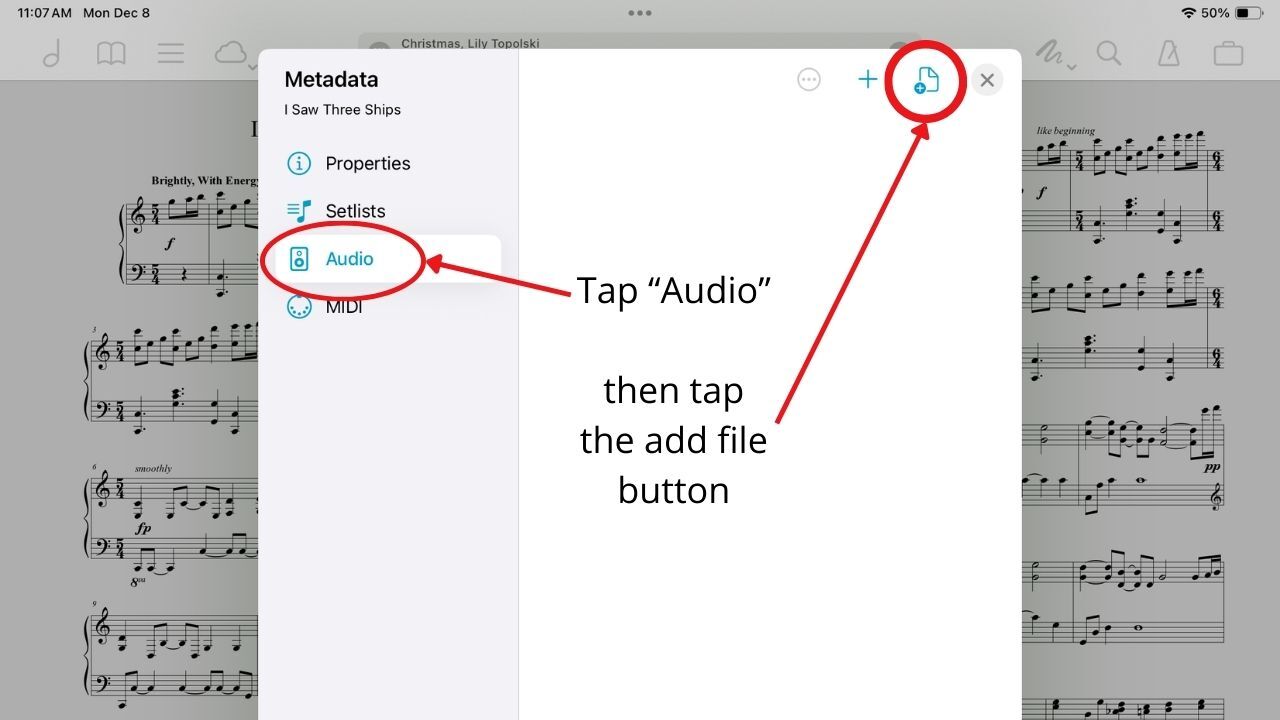
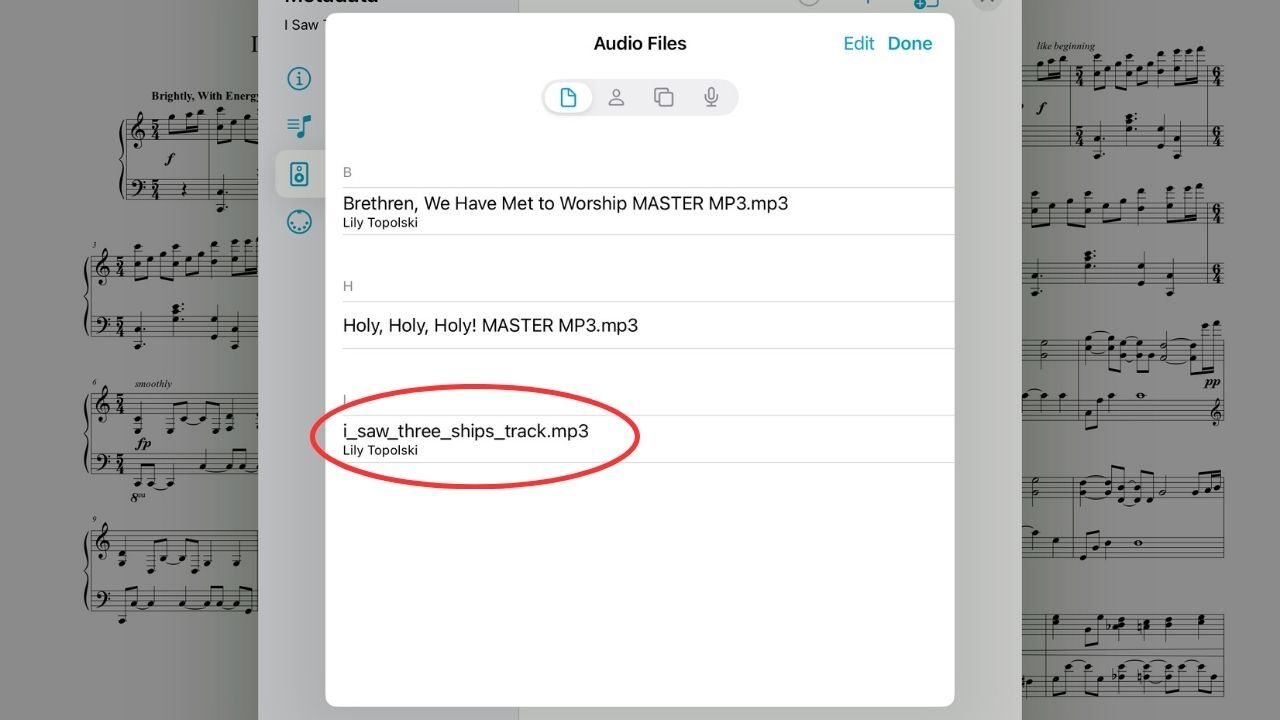
In the Metadata, click on "Audio" and then the add file button to access your imported tracks list. Here, you will click on the name of the background track you imported and it will be linked to your sheet music!
Extra Tips
Now that the track is linked to the sheet music, there are a couple of helpful features for practice and performance.
Slow Down the Track
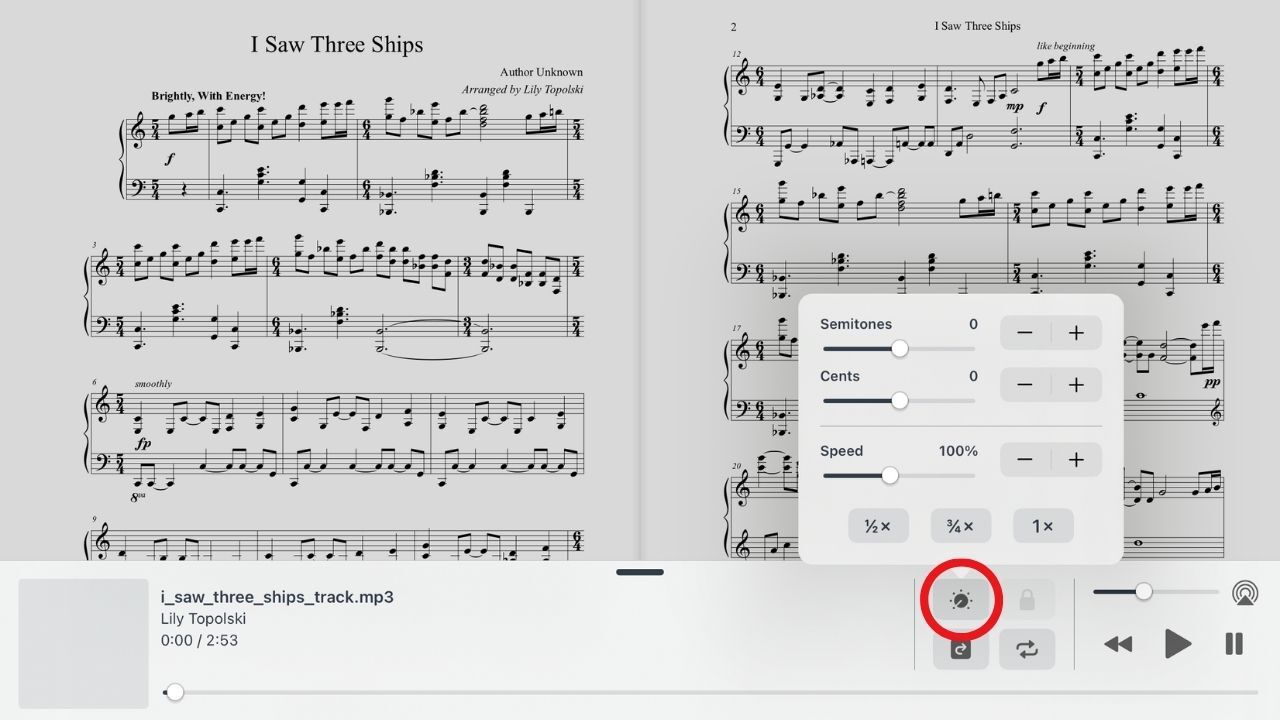
The first helpful tool you now have access to is the ability to slow down the track. Even if you can play the song well and up to speed without the track, it can sometimes be difficult getting used to the track. Slowing things down can be very helpful here! To slow down the speed of a track, simply click the button circled in red below and set up your preferred speed.
Set Up Automatic Page Turns
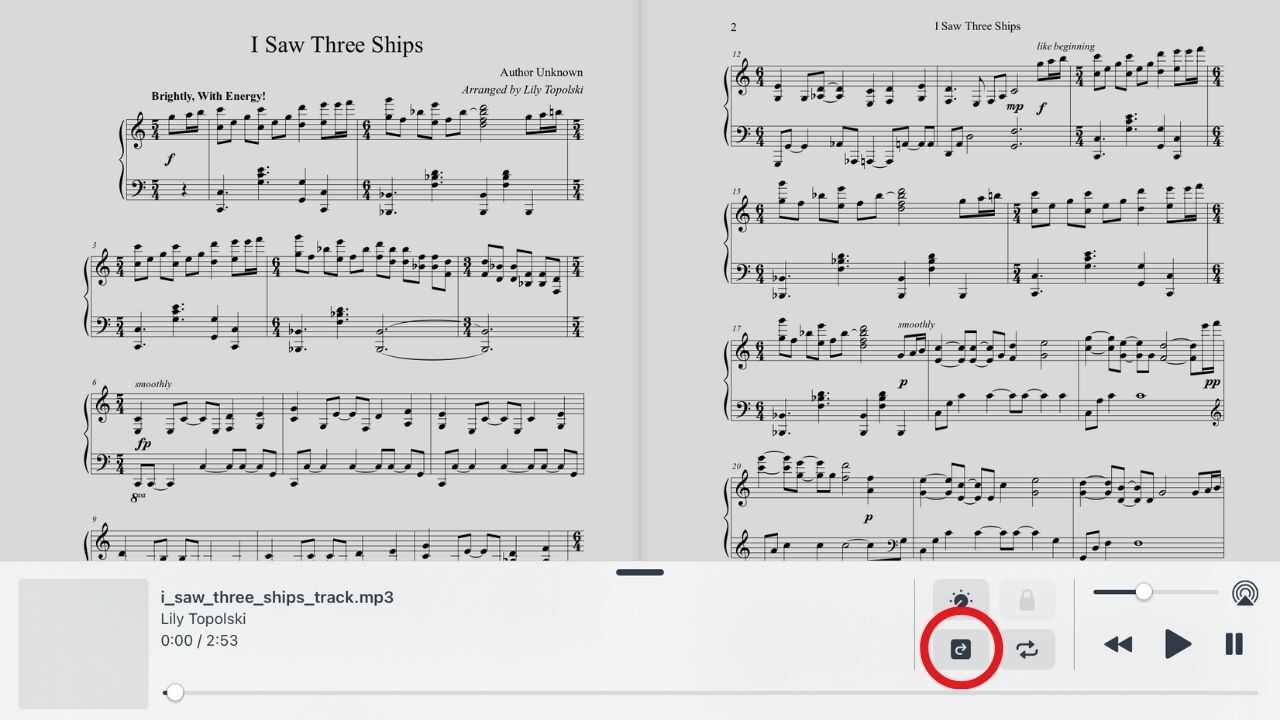
The second helpful tool is the ability to set up automatic page turns. To do this, you will click the page turn button circled in red in the photo below. Prompts will pop up explaining how the process will go. Basically, once you begin, the program will play the track and record whenever you turn the page. Once finished, whenever you play the track again it will replay these page turns so that you never have to touch the screen once you hit play!
Conclusion
I hope this article has been helpful for you whether you enjoy using background tracks at home or to perform at church or other venues! You can also follow these same steps with any other downloadable background tracks you happen to use for songs. If you have any other questions about the tracks we offer or how to use them, try reading Background Tracks (Questions and More!) or contact us and we will be happy to help!